ChatAI – Your Local AI Assistant
Since CodeLite 18.2.0
Overview
CodeLite 18.2.0 ships with a built-in chat interface that connects to any language model you configure – locally (via an Ollama server) or remotely (e.g., Anthropic Claude). Adding new endpoints is now a guided wizard process, and all interactions are performed through a clean, toolbar-driven UI.
Add an LLM Endpoint
New Endpoint
- Open AI → Add New Endpoint from the main menu.
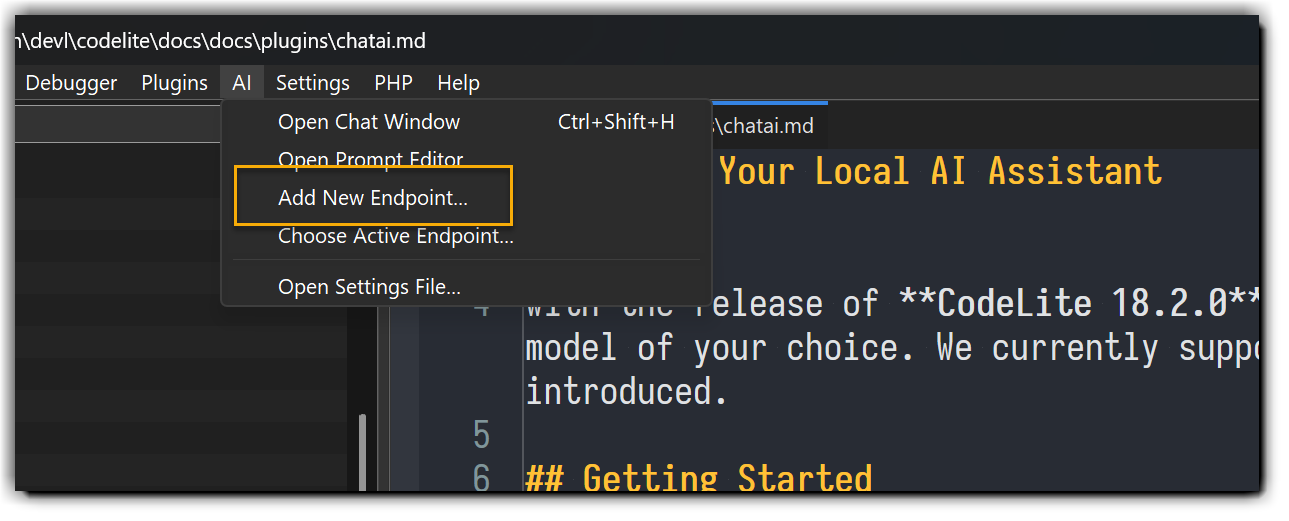
- Follow the wizard: choose a name, select the provider (Ollama, Claude, etc.), enter the URL and any required authentication, then click Finish.
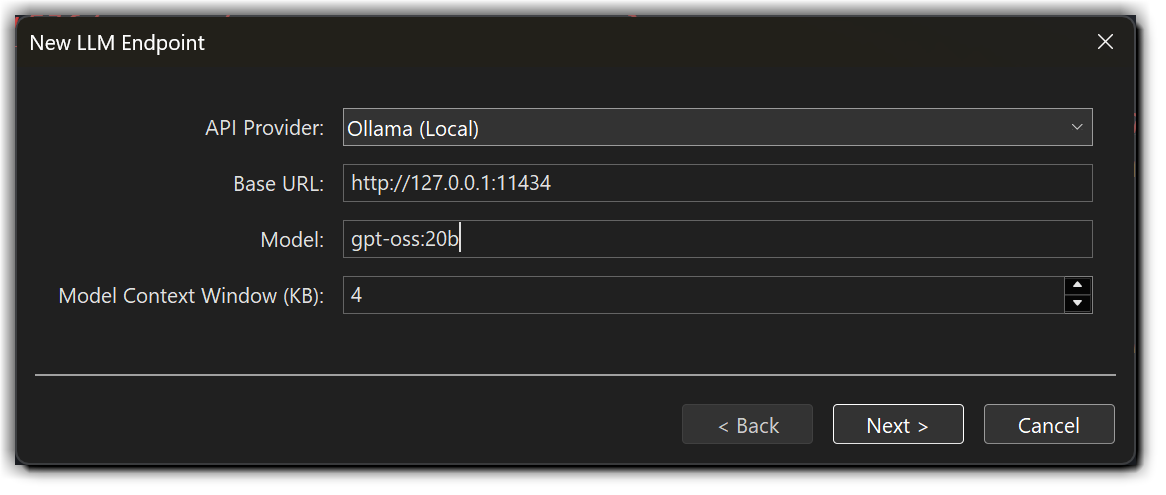
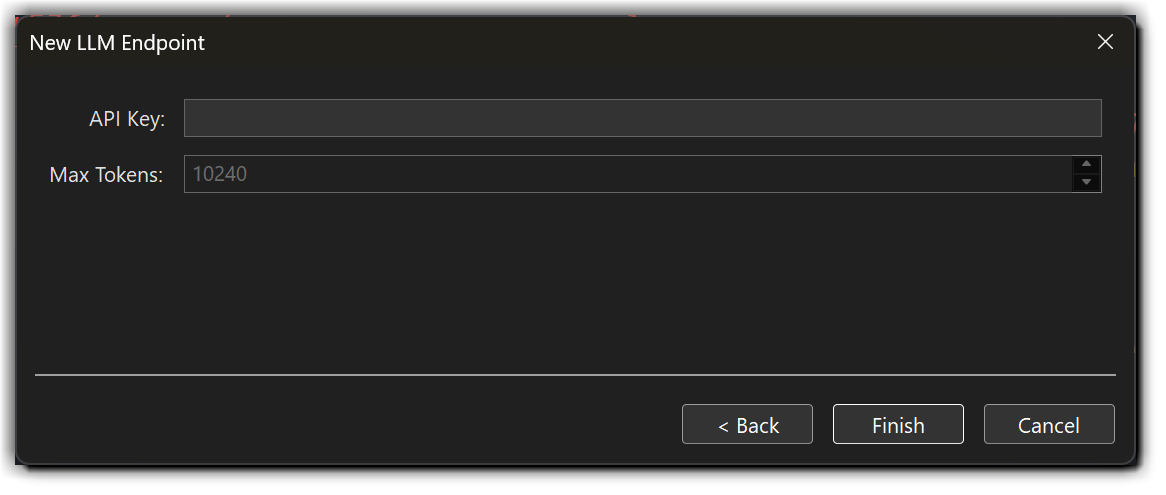
- Test the endpoint: press Ctrl+Shift+H to open the chat box and send a short prompt (e.g., "Hello").
Configuring Multiple Models for a Single Endpoint
Some endpoints support multiple models. For example, when working with Anthropic, you can choose between Haiku, Sonnet, or Opus. CodeLite allows you to configure multiple models for a single endpoint and quickly switch between them from the chat box UI.
To add multiple models:
- Open the AI settings file from the main menu bar: AI → Open Setting File
- Locate the endpoint section you want to modify
- If you do not already have a
modelsentry, add one so it resembles the following:
"https://api.anthropic.com": {
  "active": true,
  "context_size": 200000,
  "http_headers": {
    "x-api-key": "${ANTHROPIC_KEY}"
  },
  "max_tokens": 64000,
  "model": "claude-sonnet-4-5",
  "models": [
    "claude-sonnet-4-5",
    "claude-haiku-4-5",
    "claude-opus-4-5"
  ],
  "type": "anthropic"
},
- Save the file. The UI will update automatically.
The Chat Box
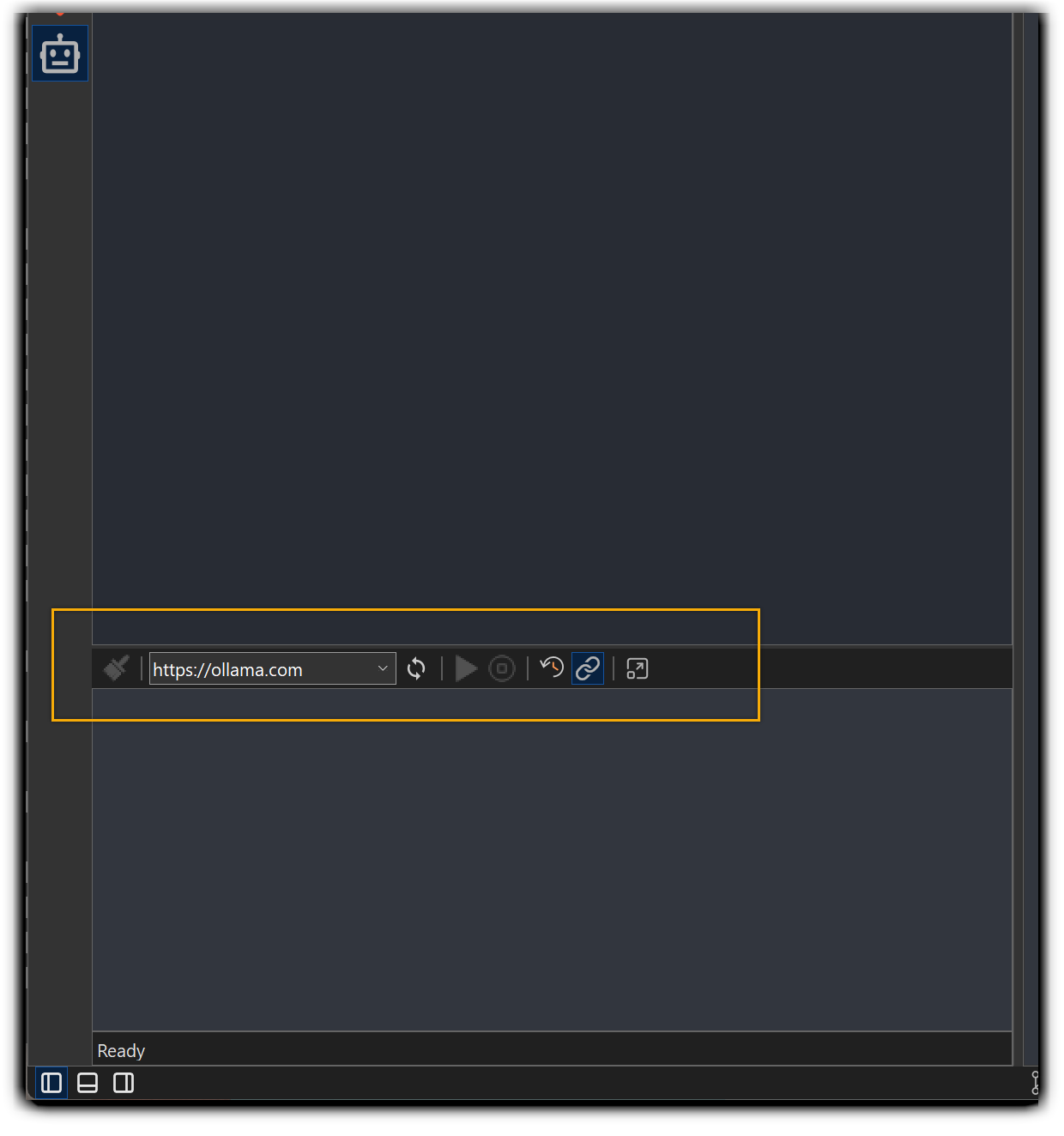
Open the chat box at any time with Ctrl+Shift+H. The window can be used for casual questions, code-related queries, or to instruct the model to perform tasks.
Built-in Model Tools
CodeLite exposes the following built-in tools for the model:
File & Workspace Management
-
CreateNewFile - Create a new file at the specified path with optional content
filepath(string): The path where the new file should be createdfile_content(string): The initial content to write to the file
-
CreateWorkspace - Create a new workspace at the given path with the provided name
path(string): The directory path where the workspace should be createdname(string): The name of the workspace to createhost(string): The SSH host for creating a remote workspace
-
ReadFileContent - Read the content of a file from the disk
filepath(string): The path of the file to readfrom_line(number, optional): Starting line number (1-based) to read fromline_count(number, optional): Number of lines to read
-
OpenFileInEditor - Try to open a file and load it into the editor for editing or viewing
filepath(string): The path of the file to open inside the editor
-
GetActiveEditorFilePath - Retrieves the file path of the currently active editor
- (no parameters)
-
GetActiveEditorText - Return the text of the active tab inside the editor
from_line(number, optional): Optional starting line (1-based)count(number, optional): Number of lines to read
Git Operations
-
ApplyPatch - Apply a git style diff patch to a file
patch_content(string): The git style diff patch content to applyfile_path(string): The path to the file that should be patched
-
GetLogInRangeCommit - Return git history of commits between a range of commits
start_commit(string): The first commit in the rangeend_commit(string): The second commit in the range
Search & Exploration
- FindInFiles - Search for a given pattern within files in a directory (using
grep)root_folder(string): The root directory where the search beginsfind_what(string): The text pattern to search forfile_pattern(string): The file pattern to matchcase_sensitive(boolean, optional): When enabled, performs case-sensitive matchingwhole_word(boolean, optional): When enabled, matches only complete wordsis_regex(boolean, optional): When enabled, treats find_what as a regular expression patterncontext_lines_before(number, optional): Number of lines to display before each matchcontext_lines_after(number, optional): Number of lines to display after each match
System & Execution
-
GetOS - Return the current active OS
- (no parameters)
-
ShellExecute - Execute a shell command and return its output
command(string): The shell command to execute
-
ReadCompilerOutput - Read and fetches the compiler build log output of the most recent build command executed by the user
- (no parameters)
Quick Example
You get a confusing compile error. Type:
Explain the build errors and suggest fixes.
The model will automatically call ReadCompilerOutput, fetch the log, and then reply with a human-readable explanation and concrete fixes.
External MCP Servers
In addition to the built-in tools, CodeLite supports external MCP (Model Context Protocol) servers. You can integrate two types of external servers:
- SSE (Server-Sent Events) over HTTPS — For remote server connections
- Local MCP Server (over STDIO) — For locally running servers
Adding External MCP Servers
To add an external MCP server, navigate to the menu bar and select one of the following options:
| Server Type | Menu Path |
|---|---|
| Local MCP Server | AI → Add New Local MCP Server |
| SSE MCP Server | AI → Add New SSE MCP Server |
Placeholders
CodeLite provides a comprehensive set of placeholders that can be utilized within prompts. When you type {{ in the chat box,
a completion menu will appear displaying all available placeholders.
Supported placeholders:
{{current_selection}}– The currently selected text in the editor{{current_file_fullpath}}– Full path of the current file{{current_file_ext}}– File extension of the current file{{current_file_dir}}– Directory containing the current file{{current_file_name}}– Name of the current file{{current_file_lang}}– Programming language of the current file{{current_file_content}}– Complete content of the current file
CodeLite Prompt Store
Overview
CodeLite provides a Prompt Store feature that enables users to write and store prompts for future use. This functionality facilitates efficient prompt management and customization within the development environment.
Prompt Editor
The Prompt Editor allows you to:
- Tweak the system prompt for each operation
- Add custom prompts
- Create entirely new AI actions
These prompts can be used from the Chat-Box "Options" drop down menu.
AI-Powered IDE Features
Git Commit Message
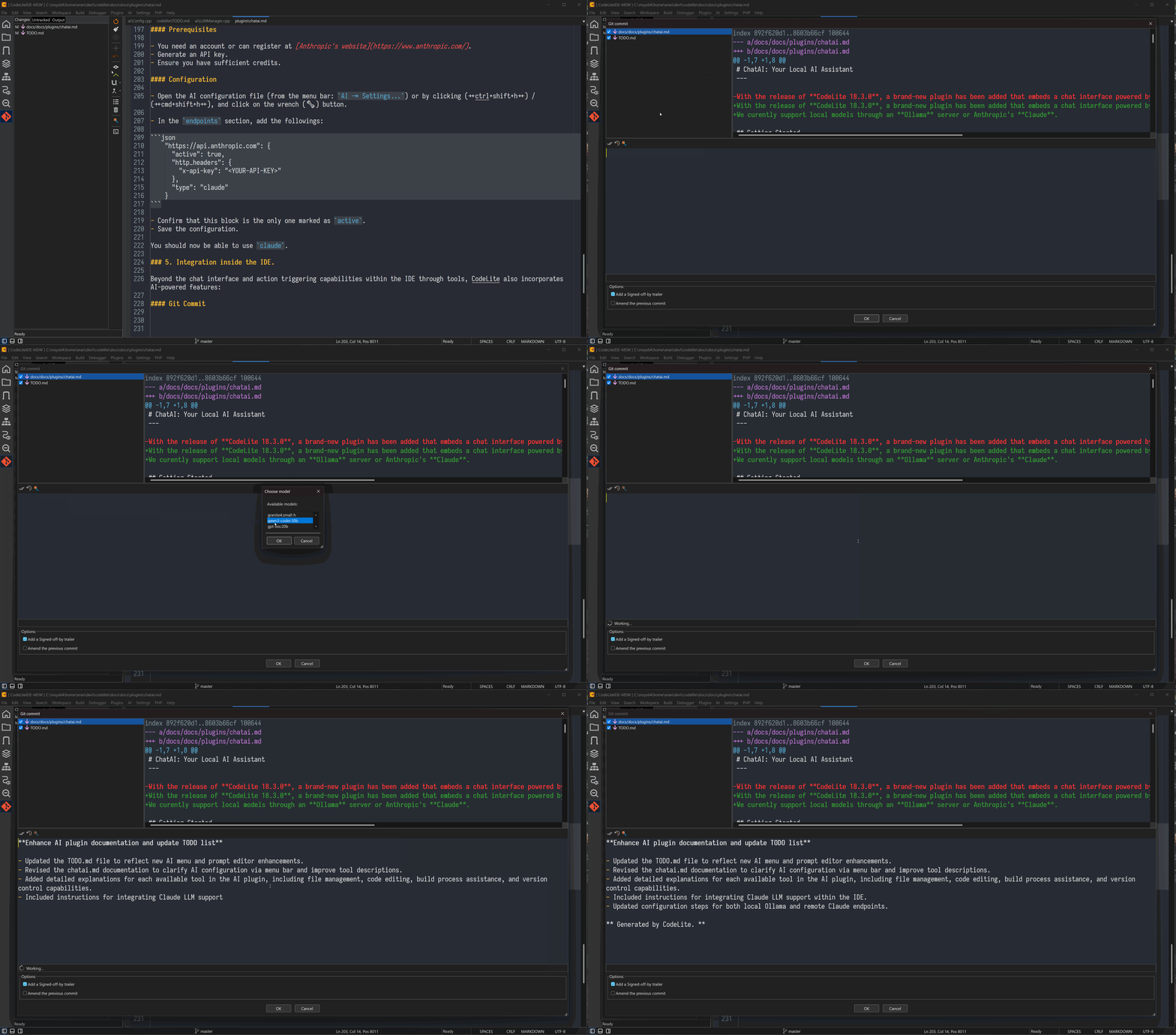
One click generates a full commit message from the current diff.
Automatic Function Documentation
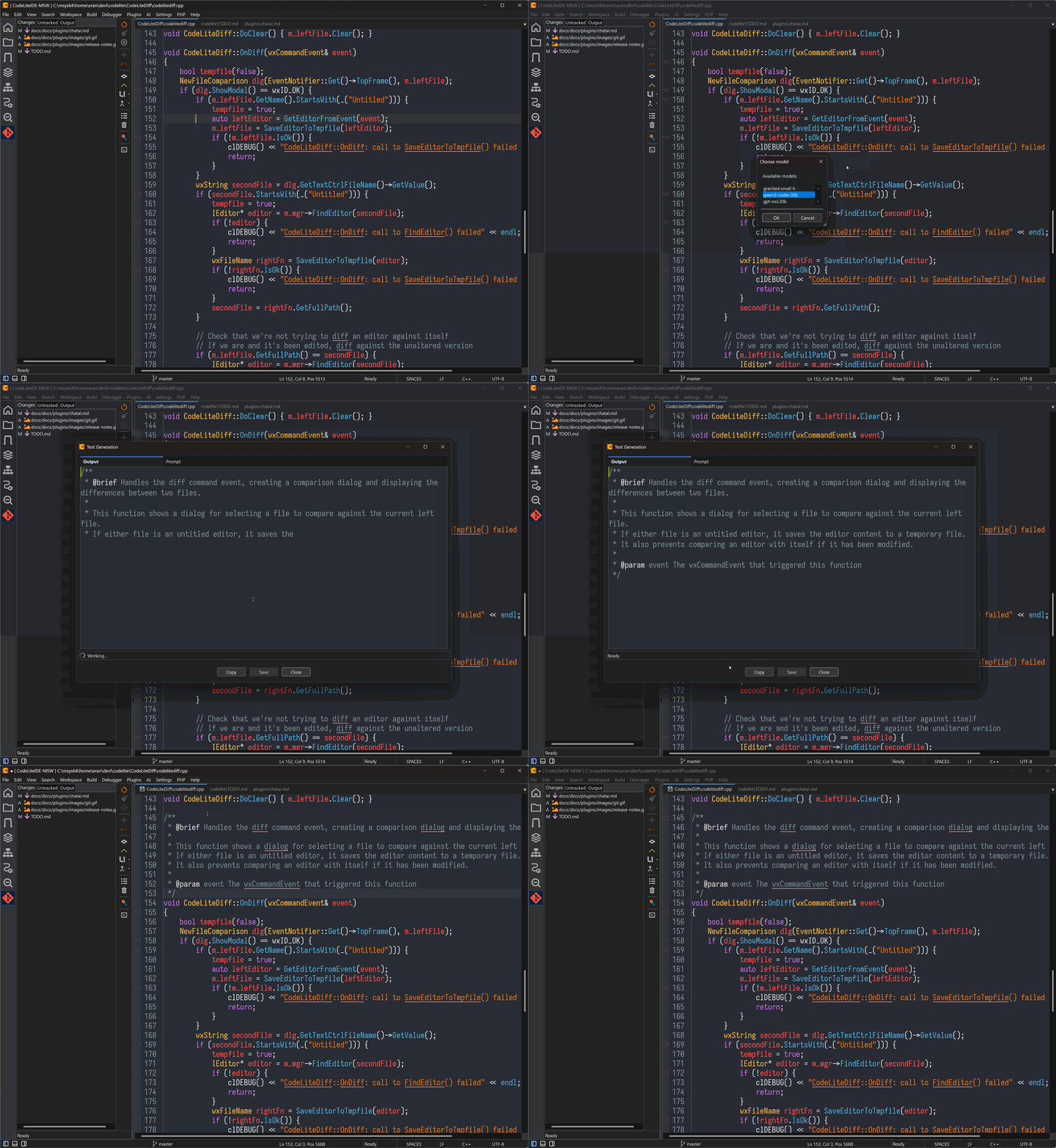
Place the cursor inside a function, press Ctrl+Shift+M, and the model writes a complete docstring.
Getting Help
- Open the chat box (Ctrl+Shift+H) and ask any question or ask the model to perform tasks for you.
- For endpoint-specific issues, use AI → Settings to view or edit the stored URLs and tokens.
Enjoy a smarter, faster coding experience with ChatAI in CodeLite