ChatAI – Your Local AI Assistant
Since CodeLite 18.2.0
Overview
CodeLite 18.2.0 ships with a built-in chat interface that connects to any language model you configure – locally (via an Ollama server) or remotely (e.g., Anthropic Claude). Adding new endpoints is now a guided wizard process, and all interactions are performed through a clean, toolbar-driven UI.
Add an LLM Endpoint
New Endpoint
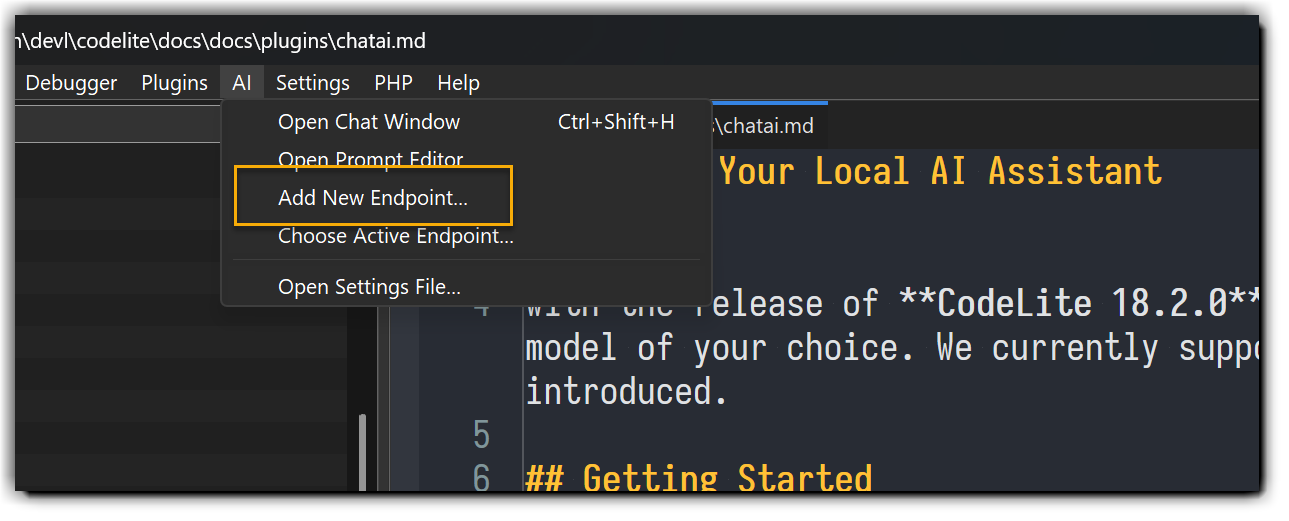
- Open Chat AI → Add New Endpoint from the main menu.
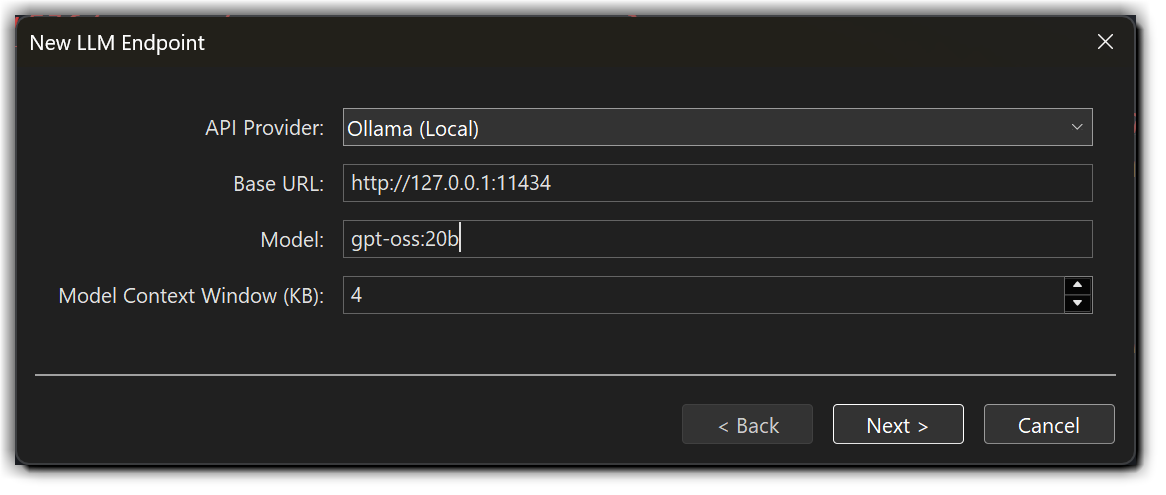
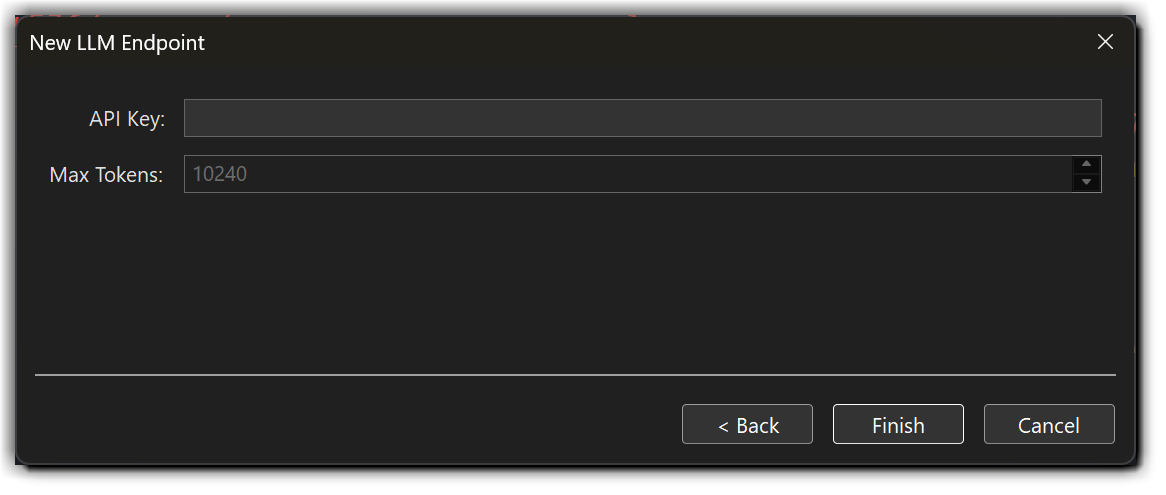
- Follow the wizard: choose a name, select the provider (Ollama, Claude, etc.), enter the URL and any required authentication, then click Finish.
- Test the endpoint: press Ctrl+Shift+H to open the chat box and send a short prompt (e.g., "Hello").
Configuring Multiple Models for a Single Endpoint
Some endpoints support multiple models. For example, when working with Anthropic, you can choose between Haiku, Sonnet, or Opus. CodeLite allows you to configure multiple models for a single endpoint and quickly switch between them from the chat box UI.
To add multiple models:
- Open the AI settings file from the main menu bar: Chat AI → Open Settings File...
- Locate the endpoint section you want to modify
- If you do not already have a
modelsentry, add one so it resembles the following:
"https://api.anthropic.com": {
  "active": true,
  "context_size": 200000,
  "http_headers": {
    "x-api-key": "${ANTHROPIC_KEY}"
  },
  "max_tokens": 64000,
  "model": "claude-sonnet-4-5",
  "models": [
    "claude-sonnet-4-5",
    "claude-haiku-4-5",
    "claude-opus-4-5"
  ],
  "type": "anthropic"
},
- Save the file. The UI will update automatically.
The Chat Box
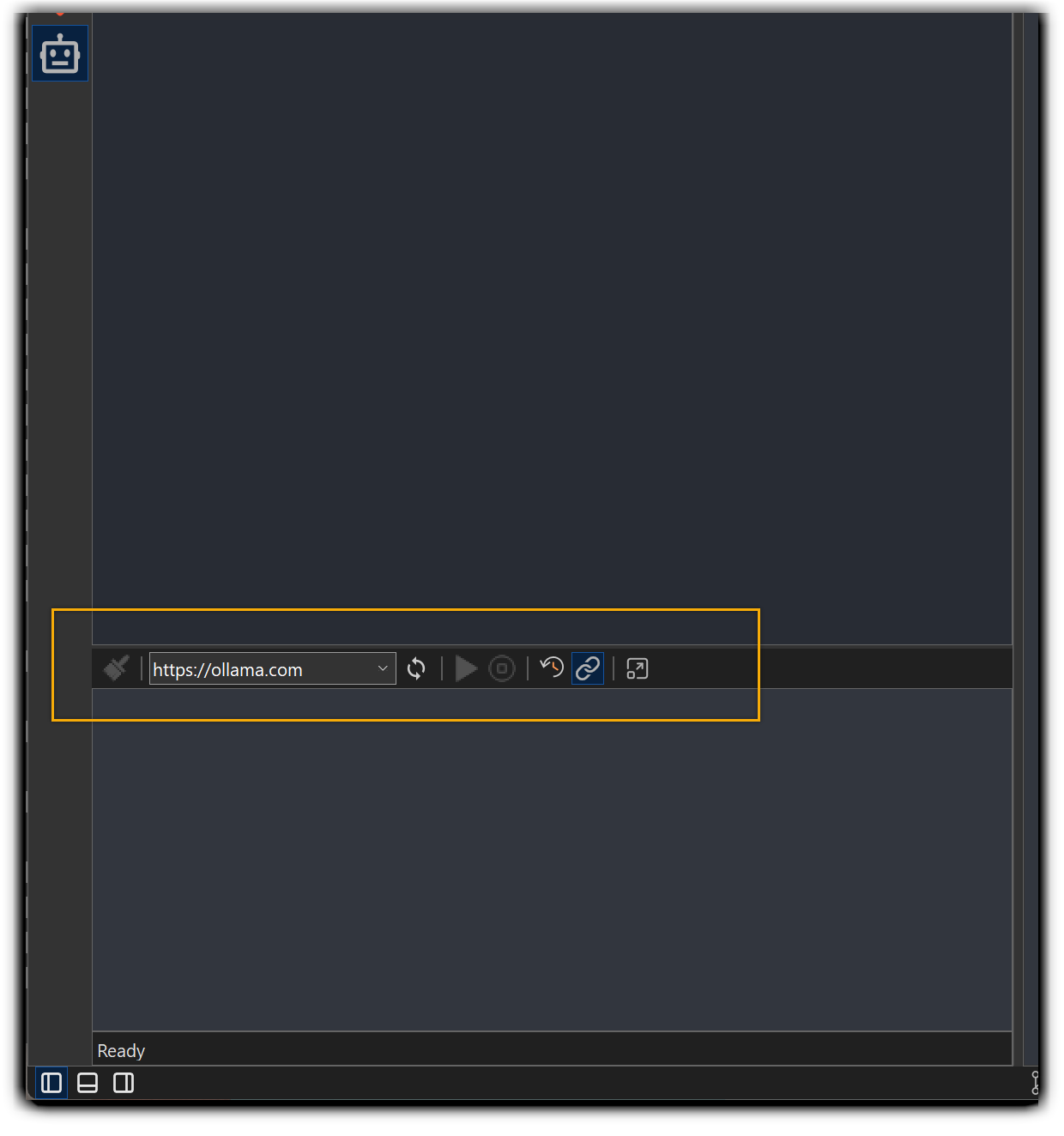
Open the chat box at any time with Ctrl+Shift+H. The window can be used for casual questions, code-related queries, or to instruct the model to perform tasks.
Slash Commands
Typing / in the chat input box opens an auto-complete popup listing all available commands.
Select a command with the arrow keys and press Enter, or continue typing to filter the list.
The / character and any partial text you typed are automatically removed once a command is selected —
the command executes immediately without sending anything to the model.
| Command | What it does |
|---|---|
/clear |
Clears the chat output view and resets the conversation history, discarding anything added via /context. Standing system prompt context is kept. |
/context |
Opens a file picker to load one or more files into the model's system context. On a remote workspace the remote file browser is shown instead. Supported file types include Markdown and any plain-text file. |
/save |
Prompts you for a name and saves the current conversation to CodeLite's session store, where it can be reloaded later via Chat AI → Load Session. |
/clear
Wipes the chat output window and resets the conversation history. System context is reset back to its
standing defaults rather than wiped entirely: the built-in agentic-loop instruction, the open workspace's
AGENTS.md/CLAUDE.md content (see System Prompt below), and your persisted system
prompt are all kept. Anything added ad hoc during the session via /context is discarded.
Note:
/clearis permanent — there is no undo. Save the session first with/saveif you want to keep it.
/context
Lets you inject additional files directly into the model's system prompt so it has background knowledge before you ask your first question. Typical use cases:
- Load a project's
README.mdor architecture document so the model understands the codebase. - Feed in a coding-standards file to influence generated code style.
- Supply a reference API document for a library you are working with.
On a remote workspace (Remoty plugin) the remote SFTP file browser is shown so you can pick files directly from the SSH host without downloading them first.
/save
Saves the current conversation under a name you choose. Saved sessions are stored per-endpoint and can be reloaded at any time from the Chat AI → Load Session menu entry (or the toolbar button). This is useful for bookmarking a long debugging session or preserving a generated design document.
System Prompt
New in CodeLite 18.5.0
Chat AI keeps a small set of "standing" system messages that are always sent to the model alongside your
conversation, on top of whatever you add with /context. Unlike /context files, these survive /clear
(see above) and are re-applied automatically whenever a session starts:
- A built-in instruction that keeps the model working autonomously through multi-step tool use instead of stopping after a single tool result.
- The open workspace's
AGENTS.mdfile (orCLAUDE.mdif there's noAGENTS.md), loaded automatically as soon as the workspace opens — a convenient way to give the model project-specific instructions without running/contextby hand every time. - Your own persisted system prompt — free-form text applied to every agent session, on every endpoint.
Editing Your System Prompt
- Open Chat AI → Edit System Prompt... from the main menu.
- Type or edit the prompt text and click Close to save it.
The default system prompt asks the model to keep answers concise and to write in simple (B2-level) English; edit or clear it to change that behavior. Changes apply to the currently running session immediately — you don't need to restart the client.
Note
This is different from the per-operation prompts in the Prompt Store (e.g. the prompt used for "Generate Commit Message"). The system prompt here applies to every agent conversation, regardless of which operation triggered it.
Built-in Model Tools
CodeLite exposes the following built-in tools for the model:
File & Workspace Management
| Tool | Description | Requires Approval |
|---|---|---|
FileSystemWrite |
Create a new file, append to an existing file, or create a directory | ✅ |
CreateWorkspace |
Create a new local or remote (SSH/SFTP) workspace | — |
ReadFileContent |
Read a block of lines from a file (local or remote) | ✅ |
ReadFileMetadata |
Read metadata (full path, size, line count) of a file | ✅ |
OpenFileInEditor |
Open a file in the CodeLite editor | — |
GetActiveEditorFilePath |
Return the file path of the currently active editor tab | — |
GetActiveEditorText |
Return a range of lines from the active editor tab | — |
ApplyPatch |
Apply a git-style unified diff patch to a file | ✅ |
FindInFiles |
Search for a pattern across files using grep |
— |
ShellExecute |
Execute a shell command and return its output | ✅ |
ReadCompilerOutput |
Fetch the build log from the most recent build | — |
GetWorkingDirectory |
Return the current workspace directory (or process CWD) | — |
GetOS |
Return the active operating system (Windows, macOS, Linux) |
— |
Requires Approval — Tools marked ✅ will pause and ask for your confirmation before they run. You can permanently trust a tool or a specific path/command to skip future prompts.
Tool Reference
FileSystemWrite
Creates a new file, appends content to an existing file, or creates a directory.
| Parameter | Type | Required | Description |
|---|---|---|---|
action |
string | ✅ | One of: create_file, create_dir, append_file |
path |
string | ✅ | File path for create_file/append_file, or directory path for create_dir |
content |
string | — | Content to write or append when action is create_file or append_file |
When action is create_file, the tool creates the file and writes the provided content if any.
When action is append_file, the tool appends the provided content to the existing file.
When action is create_dir, the tool creates the directory if it does not already exist.
CreateWorkspace
Creates a new CodeLite workspace. Pass a host to create a remote workspace over SSH/SFTP (requires the Remoty plugin).
| Parameter | Type | Required | Description |
|---|---|---|---|
path |
string | ✅ | Directory path where the workspace should be created |
name |
string | — | Workspace name (defaults to the directory name) |
host |
string | — | SSH host for a remote workspace |
ReadFileContent
Reads up to 200 lines from a file. Works with both local and remote (SFTP) files.
| Parameter | Type | Required | Description |
|---|---|---|---|
filepath |
string | ✅ | Path of the file to read |
from_line |
number | ✅ | Starting line number (1-based) |
line_count |
number | ✅ | Number of lines to read (1–200) |
ReadFileMetadata
Returns a JSON object with the file's full path, size in bytes, and total line count. Works with local and remote files.
| Parameter | Type | Required | Description |
|---|---|---|---|
filepath |
string | ✅ | Path of the file to inspect |
OpenFileInEditor
Opens a file in the CodeLite editor. If a workspace is open, the file is resolved relative to the workspace root.
| Parameter | Type | Required | Description |
|---|---|---|---|
filepath |
string | ✅ | Path of the file to open |
GetActiveEditorFilePath
Returns the full path of the file currently open in the active editor tab. No parameters.
GetActiveEditorText
Returns a range of lines from the active editor tab without touching the disk.
| Parameter | Type | Required | Description |
|---|---|---|---|
from_line |
number | — | Starting line (1-based). Defaults to 1 |
count |
number | — | Number of lines to read (1–200). Defaults to 200 |
ApplyPatch
Applies a git-style unified diff patch to a file. The tool uses a fuzzy matcher so minor context drift is tolerated, but for best results always call ReadFileContent first to verify the exact current content.
| Parameter | Type | Required | Description |
|---|---|---|---|
file_path |
string | ✅ | Path of the file to patch |
patch_content |
string | ✅ | The unified diff patch to apply |
FindInFiles
Searches for a text pattern across a directory tree using grep. On remote workspaces the search runs on the SSH host.
| Parameter | Type | Required | Description |
|---|---|---|---|
root_folder |
string | ✅ | Root directory to search in |
find_what |
string | ✅ | Pattern to search for |
file_pattern |
string | ✅ | Semicolon-separated glob patterns, e.g. *.cpp;*.h (plain * is not allowed) |
recursive |
boolean | ✅ | Recurse into subdirectories |
whole_word |
boolean | — | Match whole words only. Default: true |
case_sensitive |
boolean | — | Case-sensitive matching. Default: true |
is_regex |
boolean | — | Treat find_what as an extended regular expression. Default: false |
ShellExecute
Runs an arbitrary shell command and returns its combined stdout/stderr. On remote workspaces the command executes on the SSH host. Always call GetOS first so the model can build OS-appropriate commands.
| Parameter | Type | Required | Description |
|---|---|---|---|
command |
string | ✅ | Shell command to execute |
working_directory |
string | ✅ | Directory in which to run the command |
ReadCompilerOutput
Returns the full build log produced by the most recent build invoked from within CodeLite. No parameters.
GetWorkingDirectory
Returns the workspace directory if a workspace is open, otherwise the process current working directory. No parameters.
GetOS
Returns the operating system on which CodeLite (or the remote SSH host) is running: Windows, macOS, or Linux.
No parameters. Always call this before ShellExecute to ensure OS-appropriate commands are generated.
Quick Example
You get a confusing compile error. Type:
Explain the build errors and suggest fixes.
The model will automatically call ReadCompilerOutput, fetch the log, and then reply with a human-readable explanation and concrete fixes.
External MCP Servers
In addition to the built-in tools, CodeLite supports external MCP (Model Context Protocol) servers. You can integrate two types of external servers:
- SSE (Server-Sent Events) over HTTPS — For remote server connections
- Local MCP Server (over STDIO) — For locally running servers
Adding External MCP Servers
To add an external MCP server, navigate to the menu bar and select one of the following options:
| Server Type | Menu Path |
|---|---|
| Local MCP Server | Chat AI → Tools → Add New Local MCP Server |
| SSE MCP Server | Chat AI → Tools → Add New SSE MCP Server |
Placeholders
CodeLite provides a comprehensive set of placeholders that can be utilized within prompts. When you type {{ in the chat box,
a completion menu will appear displaying all available placeholders.
Supported placeholders:
{{current_selection}}– The currently selected text in the editor{{current_file_fullpath}}– Full path of the current file{{current_file_ext}}– File extension of the current file{{current_file_dir}}– Directory containing the current file{{current_file_name}}– Name of the current file{{current_file_lang}}– Programming language of the current file{{current_file_content}}– Complete content of the current file
CodeLite Prompt Store
Overview
CodeLite provides a Prompt Store feature that enables users to write and store prompts for future use. This functionality facilitates efficient prompt management and customization within the development environment.
Prompt Editor
The Prompt Editor allows you to:
- Tweak the system prompt for each operation
- Add custom prompts
- Create entirely new AI actions
These prompts can be used from the Chat-Box "Options" drop down menu.
AI-Powered IDE Features
Git Commit Message
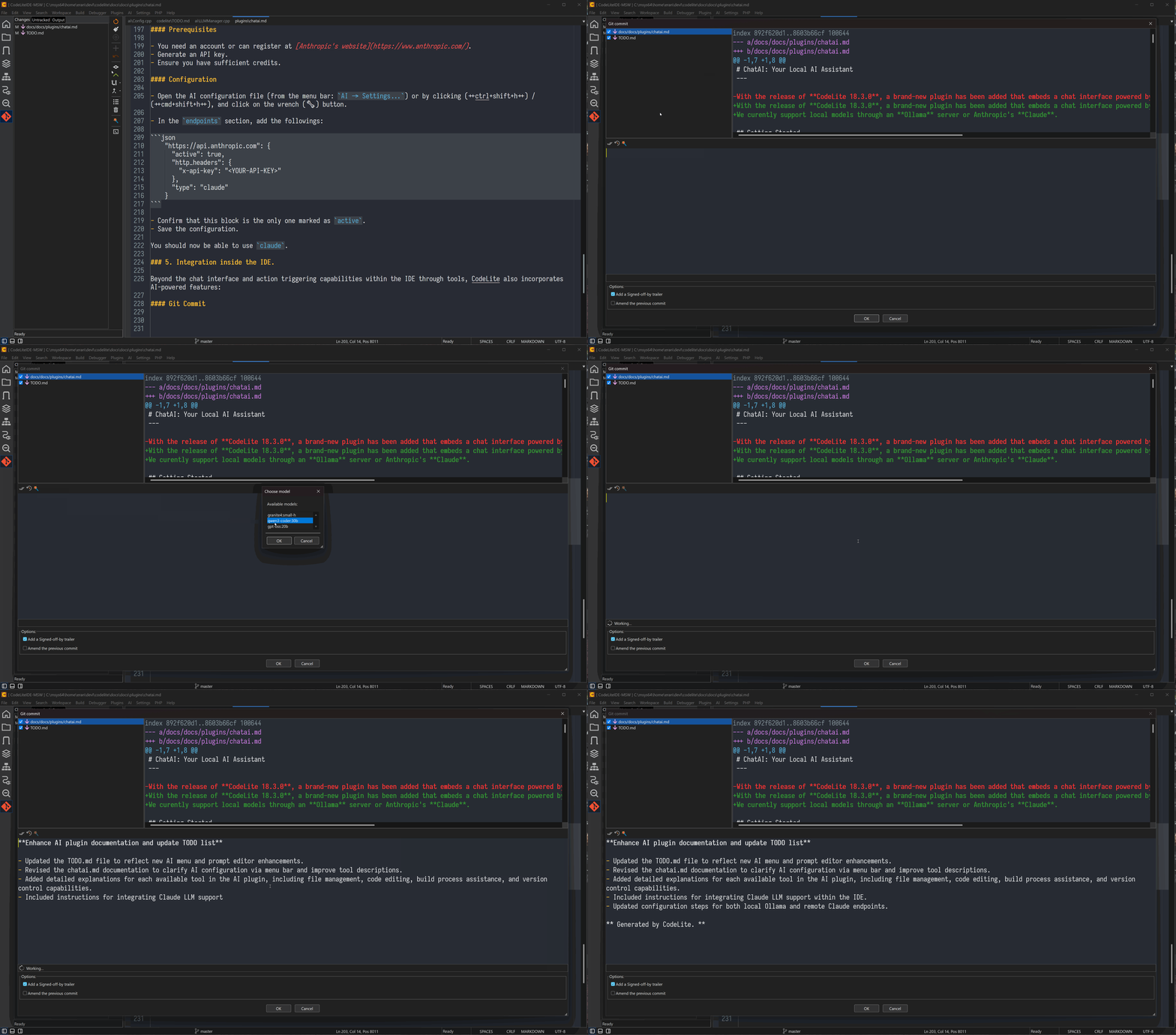
One click generates a full commit message from the current diff.
Automatic Function Documentation
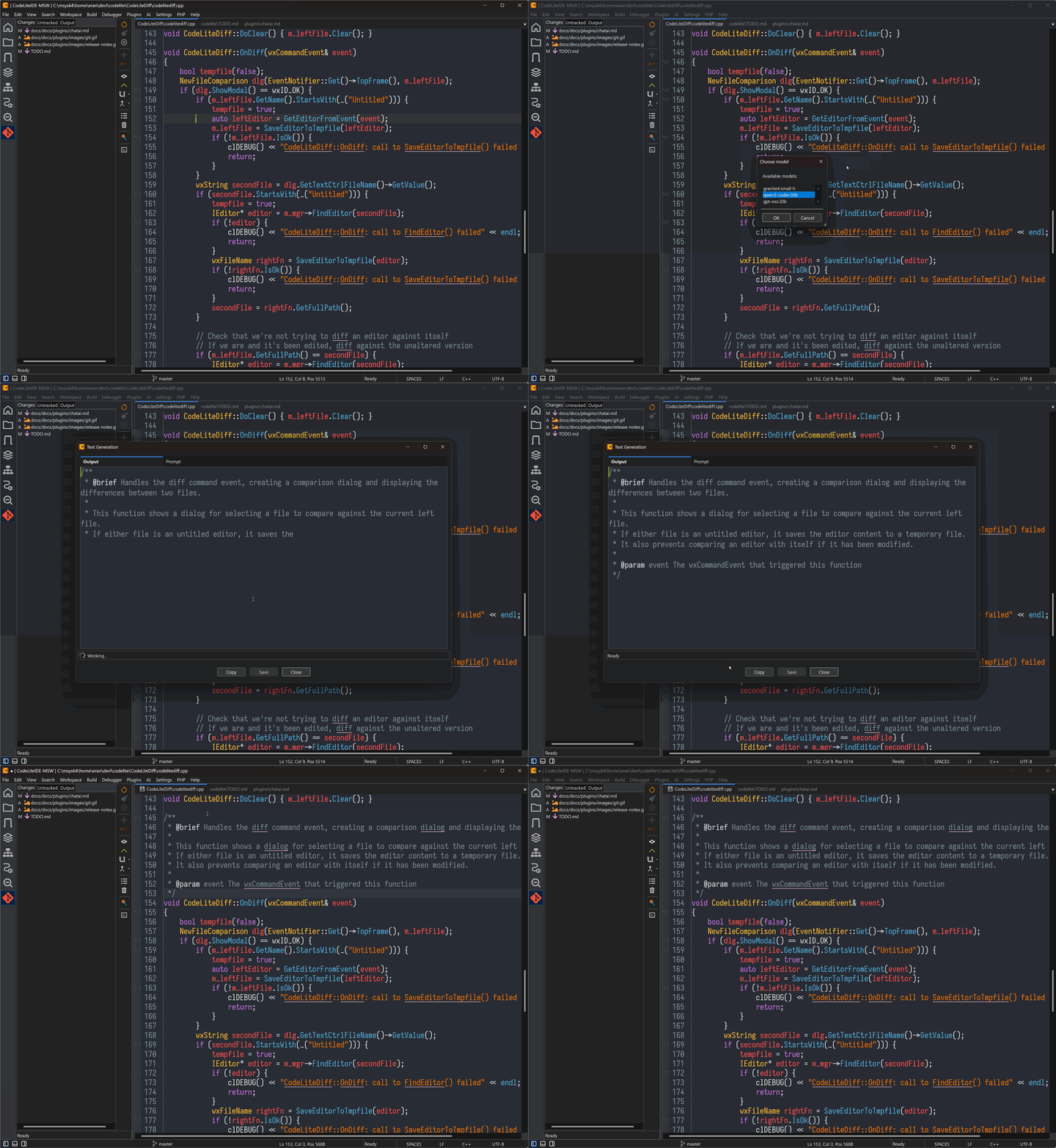
Place the cursor inside a function, press Ctrl+Shift+M, and the model writes a complete docstring.
Getting Help
- Open the chat box (Ctrl+Shift+H) and ask any question or ask the model to perform tasks for you.
- For endpoint-specific issues, use Chat AI → Open Settings File... to view or edit the stored URLs and tokens.
Enjoy a smarter, faster coding experience with ChatAI in CodeLite